
58th Floor AI Video Generator
Make a 58th Floor AI video from two photos — a teal-studio rap duet where one performer sings the hook and the other raps the verse.
From 1600 credits per generation
What is 58th Floor AI?
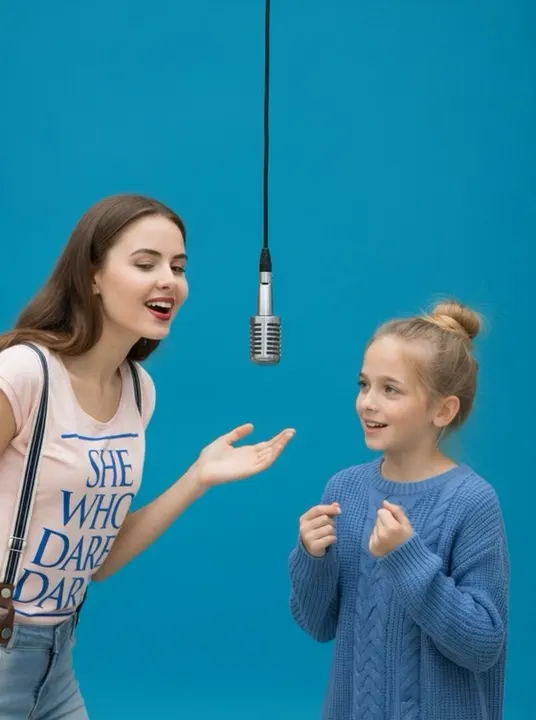
The 58th Floor AI effect recreates the two-person COLORS-style format that went viral: a minimalist seamless teal-blue studio, a single vintage microphone hanging between two performers, and a camera that stays close to the performance.
Upload one photo per person. The person on the left sings a soulful hook while the person on the right raps the verse, moving between an opening two-shot, a verse close-up, a wide shot and a final face-off. Faces, hair, skin tone and clothing stay recognizable, and an original soulful hip-hop track is generated with the clip.
What Is the 58th Floor AI Video Trend?
The format comes from the COLORS-style two-person session: one singer carries a soulful hook, one rapper takes the verse, and the camera moves between a two-shot, a close-up and a final face-off. The teal studio and the hanging microphone are the visual signature. The AI version needs one photo per person and builds the whole session around them. It is popular because the format makes a duet look intentional even when the two performers have never met and the footage was never shot together.
58th Floor AI Video Generator Free: What You Get
Upload two photos and see the full credit cost before confirming. The result is a finished vertical duet with an original soulful hip-hop track, not a timeline you still have to assemble. Free does not mean unlimited: each render consumes credits, and the two-person pipeline costs more than a solo clip because both faces must be placed and animated. For a first test, keep the default duration and check both likenesses before paying for a longer version. Replace one photo at a time if only one person drifts.
58th Floor AI Video Template vs. CapCut
A CapCut template needs real footage of two people in the same room. This generator merges two stills into one teal stage and animates the performance between them, including the shot changes from two-shot to close-up to face-off. That makes a remote collaboration possible: two people in different cities can appear in the same session. The trade-off is that the camera cuts are generated rather than chosen, so you cannot storyboard every angle. Use it when the COLORS look matters more than shot-level control.
58th Floor AI Video Scene: What the Model Is Told
The template sets a seamless teal-blue studio with a single vintage microphone hanging between two performers and a camera that stays close. It assigns roles: the left performer sings a soulful hook, the right performer raps the verse. It then moves through an opening two-shot, a verse close-up, a wide shot and a final face-off, preserving each person’s face, hair, skin tone and clothing. An original soulful hip-hop track is generated with the clip, so the audio and the role division stay consistent.
How to Make a 58th Floor AI Video With Two Photos
Pick one front-facing photo per person, with similar lighting and no sunglasses. Matching camera height matters more than matching backgrounds, because both people are placed in the same generated studio. Avoid photos where a hand covers the mouth; the lip sync needs a clear mouth. Upload both images and generate. Check that the two people look like they are standing in the same room — if one looks pasted in, retry with a photo taken at a similar distance from the subject.
Best 58th Floor AI Video Generator: What to Compare
Two-person clips fail in specific ways, so compare those. Do both faces stay recognizable after the close-up cut? Does the microphone stay between them? Is the left/right role division respected, or do both people mouth the same part? Does the teal background stay seamless? Finally, listen for an original track and check that the lip sync follows the active performer. A generator that merges the photos convincingly but loses one face during the verse close-up is not ready for a duet.
Why use this effect
Two photos, one stage
Each performer gets their own photo; the AI merges them into one teal studio frame.
Hook and verse roles
The left performer sings the hook and the right one raps the verse, like the original format.
Shared hanging mic
One vintage condenser mic hangs exactly between them, with both performers leaning in.
Original soulful beat
A warm sung hook and a confident rap verse over an original hip-hop track.
How it works
Three steps from one photo to a finished clip.
- 01
Upload the left performer
The first photo becomes the person on the left, who sings the hook.
- 02
Upload the right performer
The second photo becomes the person on the right, who raps the verse.
- 03
Generate and download
The AI composes the frame, animates the performance and returns one finished clip.
Frequently asked questions
How many photos do I need?
Exactly two — one for each performer. The first upload sings the hook on the left, and the second raps the verse on the right.
What if I only have one photo?
Use a single-person effect such as Burning Bridges AI or Rooftop Rap AI, or upload two different photos of the same person.
Is the original audio included?
No. The clip is generated by AI with an original beat and vocals, and does not use the original recording.
What photo works best?
One person per photo, front-facing, evenly lit, head and shoulders visible, no sunglasses. A sharper photo for the verse role gives the most stable rap close-up.
How much does it cost?
A standard generation costs 1600 credits. The exact cost is shown before you confirm.
Please note
Use only photos you own or have permission to use. “COLORS-style” describes the visual format only and does not imply affiliation. Results are AI-generated and vary between runs.
Related effects
Hotel Lobby
Two photos become one COLORS-style performance in a burnt-orange booth.
Try this effectBurning Bridges AI
One photo makes you the lead in a chandelier-lit rap party.
Try this effectDime Dime Baby AI
One photo drops you into the quinceañera dance: bite the concha, deadpan stare, dance off.
Try this effectCreate your video
The scene and settings for this effect are already configured — switch the model above if you want, then upload your photos.
Create your video