
How to Make a Bulin 47 AI Video From One Photo
A step-by-step guide to the Bulin 47 shoulder-dance effect: the photo checklist, duration and credits, how to steer the clip, what to do when the likeness drifts, and how failed generations are refunded.
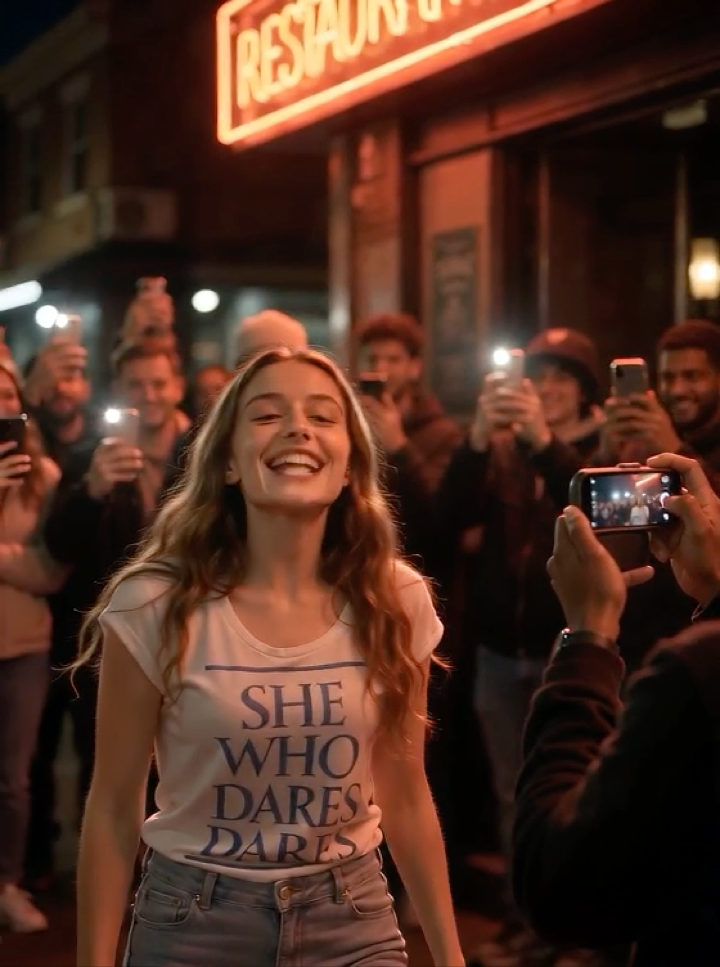
You do not need the original footage, a green screen, an editing app or a dance routine to make a Bulin 47 video. You need one photo and about three minutes.
This guide covers the whole path: how to choose the photo, what each setting does, how much a clip costs, and what to try when the first result looks off.
What you are making
The Bulin 47 AI effect generates a vertical, one-take street-freestyle clip. Your photo becomes the performer at a red-lit restaurant entrance at night: you rap to camera, break into the shoulder bounce, point at the lens, lean toward the speaker and laugh with the crowd. The camera has a natural handheld sway, and the audio is an original dembow-style beat at about 118 BPM — not the recording from the song.
Your face, hair, skin tone and clothing are carried over from the photo and kept stable through the clip. Everything else — the street, the crowd, the lighting, the beat — is generated.
Step 1: Pick the right photo
This is the step that decides most of the result. The effect only needs one photo, so it has to be a good one.
What works:
- One person, alone in frame.
- Face clearly visible, looking toward the camera or close to it.
- Even lighting — daylight, a ring light or a bright room. No hard shadow across the face.
- Head and at least the upper chest in frame, so the model has shoulders to work with.
- Natural expression, no heavy beauty filter or face-editing app.
What to avoid:
- Sunglasses, masks, hands over the face, hair covering one eye.
- Group photos, or a photo where a second face is clearly visible.
- Blurry, backlit or very dark shots.
- Side profiles and extreme angles; a three-quarter view is fine, a full profile is not.
- Screenshots of other videos, which are usually compressed twice.
If you are deciding between two photos, pick the sharper one, not the more flattering one. A clean phone selfie in daylight usually beats a professionally lit photo at an angle.
Step 2: Start the effect
- Open the Bulin 47 AI page. You can also enter through the rap video effects tool and pick the effect there.
- Sign in if you have not already.
- Upload your photo. The effect takes exactly one image.
Step 3: Choose the duration
The duration selector sets both the length and the price.
- 5 seconds — 800 credits.
- 10 seconds — 1,600 credits (default).
- 15 seconds — 2,400 credits.
The charges are proportional to duration, and the exact amount is shown on the confirm button before you generate. Start with 10 seconds — it is the length the choreography is built for, and the shoulder bounce needs those four beats to read.
Step 4: Add a direction (optional)
The effect has its own scene prompt, but there is a text field for your own direction. It is appended to the effect instructions, so keep it short and concrete. Good things to put there:
- A theme or lyric idea. “A birthday roast for my brother, funny and affectionate.”
- A vibe. “Deadpan confidence,” “hype crew energy.”
- A language. If you want the vocal to sound like a given language or accent, say so.
- One detail to feature. “He is wearing his lucky red cap.”
Skip it on the first run. Get a clip that looks like you, then add direction on the second pass if you want a specific mood.
Step 5: Generate and download
After you confirm, the task runs in the background. You can leave the page; the generation continues, and it shows up in your task history when it finishes. A typical clip takes a few minutes.
When it is done, preview it once with the sound off and once with sound. Check three things:
- Is the face recognizably the person in the photo? This is the main quality signal.
- Does the body move naturally, or freeze? The pose should never lock.
- Does the audio match the mouth? The beat and vocal are generated to fit the clip.
Then download. You get a standard vertical video file you can post, or take into CapCut to add captions, trim the ending or cut to a second shot.
What it costs and how refunds work
A standard 10-second Bulin 47 clip costs 1,600 credits, which is roughly one $9 credit pack, or less per clip on a larger subscription plan. Credits are deducted when you submit the task.
If a generation fails or times out, the credits are returned to your balance automatically — you are only charged for a generation that actually finishes. If you see a failed task that was not refunded, contact support with the task link from your history.
This also makes experimenting cheaper than it looks: a failed attempt does not cost anything, and a 5-second draft costs half of a 10-second clip.
Troubleshooting: when the result looks off
The face is not close enough. Usually the photo, not the effect. Try a sharper, front-facing shot with even light and no filter. If you only have one photo, cropping tighter to the head and shoulders often helps.
The body freezes or the motion looks stiff. Re-run it. Generations vary, and a second attempt with the same photo often produces a looser take. A photo with visible shoulders and upper chest gives the model more to animate.
The hands look strange. Hands are the hardest thing for any video model. A shorter duration reduces the number of chances to get them wrong; a wider crop that keeps hands out of frame helps too.
The audio does not fit. Try a shorter clip, or add a direction describing the mood of the beat. Remember the beat is original, not the song from the trend — if you need that specific track, licensing is your responsibility.
It looks like a different person. Check that the photo has one clear face, no sunglasses and no strong shadow. Group photos and heavily filtered selfies are the two most common causes.
Getting a better clip on purpose
- Pick an occasion. A song about one person lands harder than a song about your life in general. Browse 14 ideas with ready-to-paste themes.
- Write the track first if you want specific lyrics. The rap song generator writes lyrics and a beat from a theme; then generate the visual with a direction that points at the same idea.
- Know the format. The origin story of “Dame Hombro” explains why the original clip works, which makes it easier to bend.
- Compare workflows. If you already have the original footage, the CapCut comparison explains when a template is the better route.
Frequently asked questions
How long does a Bulin 47 AI video take?
The generation typically finishes in a few minutes. You do not have to keep the page open — the task continues and appears in your history.
Do I need to upload a video?
No. The effect takes one photo and generates the motion itself. There is no video input and no reference clip.
Will it use my own voice?
No. The vocal and beat are generated to match the performance. If you want your real voice, record it separately and lay it over the clip in an editor.
How many photos can I upload?
One. Bulin 47 is a single-portrait effect; additional images are ignored.
Can I use the clip commercially?
Check the terms for your plan and the rules of the platform you post on. The beat is generated and original, but the trend's name and choreography belong to the artists — do not present your clip as official or endorsed.
Start with one photo
Open the Bulin 47 AI effect, upload a sharp, front-facing portrait and generate a 10-second clip. If you want to plan the concept first, the ideas list has fourteen directions with themes you can paste straight in.
RapVid is an independent tool and is not affiliated with Bulin 47, Kevin Wai or their labels.